Why extract emails from text?
Email addresses end up buried in all kinds of text: a forwarded email chain, a PDF report, a web page you copied into a doc, a log file, a CSV export from a CRM, or a plain old .txt file full of contact details.
Sometimes you need them for a mailing list. Sometimes you're cleaning up a dataset. Sometimes you just want to know how many unique contacts are buried in a mess of text. Either way, manually scanning line by line is painful — and error-prone.
An email extractor automates the whole thing. Paste your text, click once, and you get every email address the tool can find. Here's the workflow.
Paste your text into the Email Extractor, click Extract, and copy the results. No regex, no code, no install.
1 Paste your text
Open the Email Extractor and paste your messy text into the input box. The tool accepts anything: a full email thread, a PDF export, a list of contacts, a block of HTML, or a plain text file's contents.
If your source is a file, open it in any text editor, select all, and paste it in. The tool doesn't care about line breaks, formatting, or how messy the source is — it scans for email patterns wherever they appear.
Contact us at support@example.com or sales@example.com.
You can also reach alice@example.com for billing questions.
Old address (no longer active): bob@old-domain.com
2 Click extract
The tool walks through your text and finds every string that matches the standard email pattern: something before an @, then a domain, then a dot, then a top-level domain.
It handles the most common variations:
- Dots in the username:
first.last@example.com - Plus signs:
user+tag@example.com - Underscores and hyphens:
user_name@example-site.com - Multi-level domains:
user@mail.example.co.uk - Uppercase and lowercase mixes:
Alice@Example.COM
The extractor uses a battle-tested regex pattern that covers 99% of real-world email addresses. It won't match quoted local parts like "weird.name"@example.com, but those are extremely rare outside of test data.
3 Review and deduplicate
The extractor returns every match it finds — including duplicates. If the same email appears three times in your source text, you'll see it three times in the output.
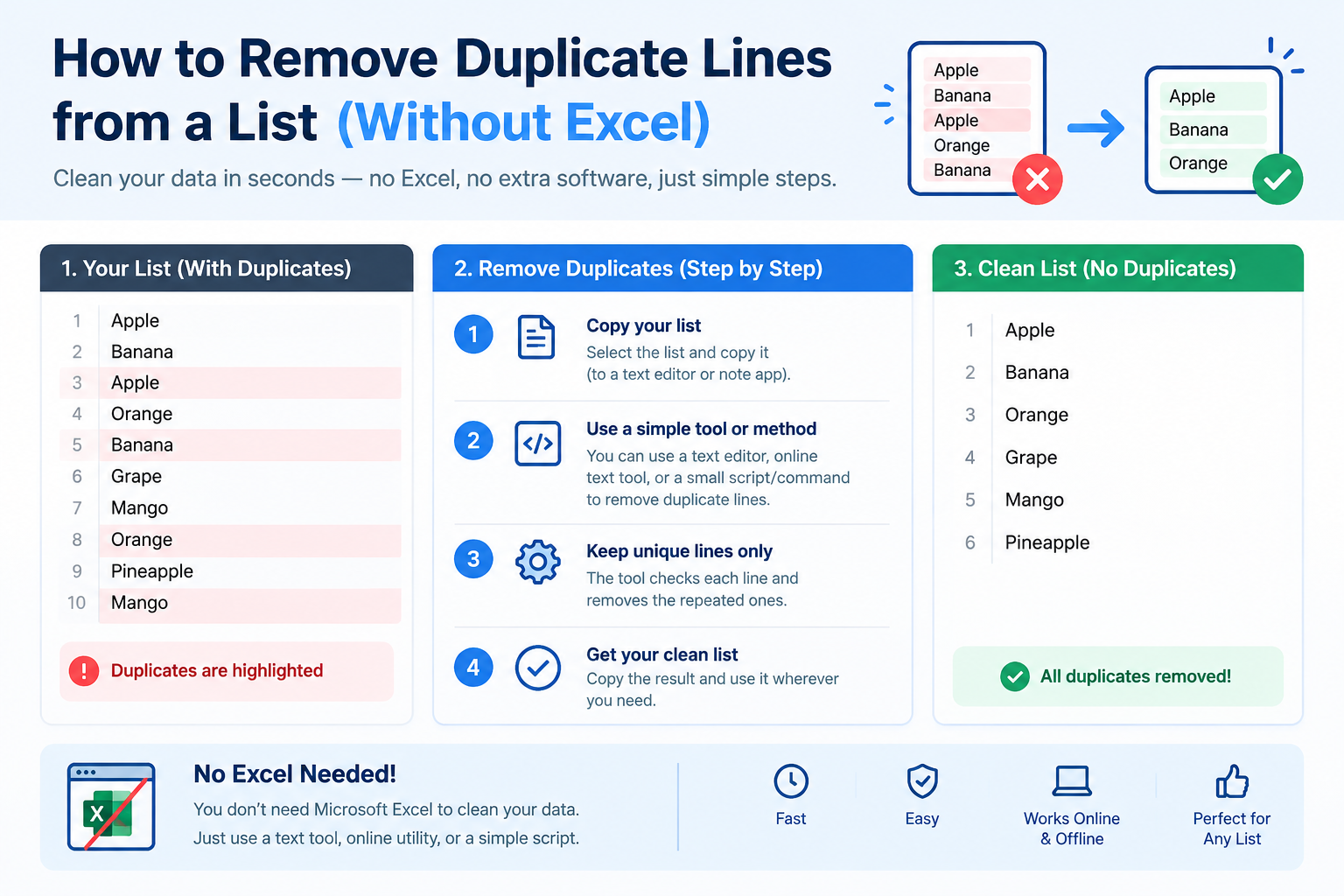
If you want a unique list, copy the extracted emails and run them through the Duplicate Line Remover. It keeps the first occurrence of each address and drops the rest in one click. The order is preserved, so you can still trace back to the original text if needed.
Email addresses are case-insensitive in practice — Alice@example.com and alice@example.com go to the same inbox. If you want them treated as one, enable case-insensitive matching in the Duplicate Line Remover.
4 Copy the clean list
Click the copy button and paste the extracted emails wherever you need them: into your CRM, an email marketing tool, a spreadsheet, or a new .txt file. That's the whole workflow — four steps, under a minute.
Paste text, get every email address in one click
The email regex pattern (how it works)
Under the hood, the Email Extractor uses a regular expression — a pattern that describes what an email address looks like. If you're curious, here's the core pattern in a readable form:
[a-zA-Z0-9._%+-]+@[a-zA-Z0-9.-]+\.[a-zA-Z]{2,}Broken down:
[a-zA-Z0-9._%+-]+— one or more letters, digits, dots, underscores, percent signs, plus signs, or hyphens (the part before the @)@— the literal @ symbol[a-zA-Z0-9.-]+— one or more letters, digits, dots, or hyphens (the domain)\.— a literal dot before the top-level domain[a-zA-Z]{2,}— two or more letters for the TLD (.com,.org,.co.uk, etc.)
This pattern catches the overwhelming majority of real-world email addresses while avoiding false positives like version numbers or file paths.
alice@example.com
bob.smith@company.co.uk
user+tag@gmail.com
first_last@domain.org
ALICE@EXAMPLE.COMnot-an-email
@missing-username.com
user@
file.txt
version 2.0Common cases (PDFs, HTML, logs)
Extracting emails from a PDF
Copy the relevant pages from the PDF, paste the text into the Email Extractor, and let it run. PDF extraction often leaves weird spacing and broken lines, but the extractor doesn't care — it scans for email patterns regardless of surrounding formatting.
If the copied text is especially messy, run it through the Text Cleaner first to collapse spaces and remove empty lines. The extractor works either way, but cleaner input means cleaner output.
Extracting emails from HTML or a web page
If you've copied HTML source code, the extractor will find email addresses in mailto: links, visible text, and metadata. It ignores the surrounding tags because it's looking for the email pattern, not the HTML structure.
For web pages, the easiest approach is to select all the visible text, copy it, and paste it in. The extractor will pull out any emails that appear on the page.
Extracting emails from a log file
Log files often contain email addresses in error messages, audit trails, or user activity records. Paste the log content in and the extractor will find every address. If the log has thousands of lines, paste it in chunks — the tool handles large inputs but browser memory is the only limit.
Extracting emails from a CSV or spreadsheet
Copy the column containing contact data and paste it in. If the CSV has other columns mixed in, that's fine — the extractor ignores everything that isn't an email pattern.
Duplicate Line RemoverDedupe your extracted email list in one click
The email extraction checklist
- Paste your text. Any source works — PDF copy, HTML, log file, CSV export.
- Click extract. The tool finds every email pattern in the text.
- Deduplicate. Run the result through the Duplicate Line Remover if you need unique addresses.
- Review the list. Check for obvious false positives (rare, but possible).
- Copy or download. Paste the clean list wherever it's needed.
- Validate if critical. For high-stakes use, run the list through an email verification service.
Frequently asked questions
Does the Email Extractor work on PDF text?
Will it find emails with unusual formats like plus signs or dots?
user@mail.example.co.uk.